
Broad codec support
Common containers and modern codecs can open without a separate conversion workflow.
A clear look at how PotPlayer handles video formats, hardware acceleration, and audio and subtitle settings on a desktop computer.
Desktop computers open a wide mix of video and audio files each day. Some come from cameras, some from downloads, and some from disc archives. Each file type carries its own set of instructions, and a media player needs the right components to read them. When those components are missing, playback can stall or fail to start.
This article looks at what a capable desktop player does behind the scenes. You will see how format support works, how a player shares its workload between the processor and graphics card, and how audio and subtitle settings give you finer control. PotPlayer appears throughout as a practical reference point for these features.
A video file is really a container that holds separate video and audio streams. Common containers include MP4, MKV, AVI, MOV, WMV, and FLV. Inside each one, the actual video is encoded with a codec such as HEVC (H.265), H.264, or VP9. To play the file, the player needs a matching decoder for that codec.
Many basic players include only a limited set of decoders. When a newer format appears, they may ask you to add a separate component before the file will open. A player with a broad built-in codec library takes a different route. It carries a wide range of decoders inside the application, so most files open directly without extra setup.
PotPlayer follows this approach. Its built-in codec support covers common containers and current video standards, which reduces the need to track down separate components for unusual file extensions.
High-resolution content, including 4K and 360-degree video, contains a large amount of data. Decoding that data takes real processing effort. If a player relies only on the central processor (CPU), the CPU can reach its limit, and playback may stutter or drop frames.
Hardware acceleration offers a more balanced method. It moves part of the decoding work to the graphics processing unit (GPU), which is designed for this kind of task. By dividing the load between the CPU and GPU, the player keeps video steady while the rest of the system stays responsive. This balance is useful on standard hardware, where the CPU alone might struggle with demanding files.
PotPlayer includes settings that let you view and adjust these hardware acceleration options, so you can match them to your own configuration.
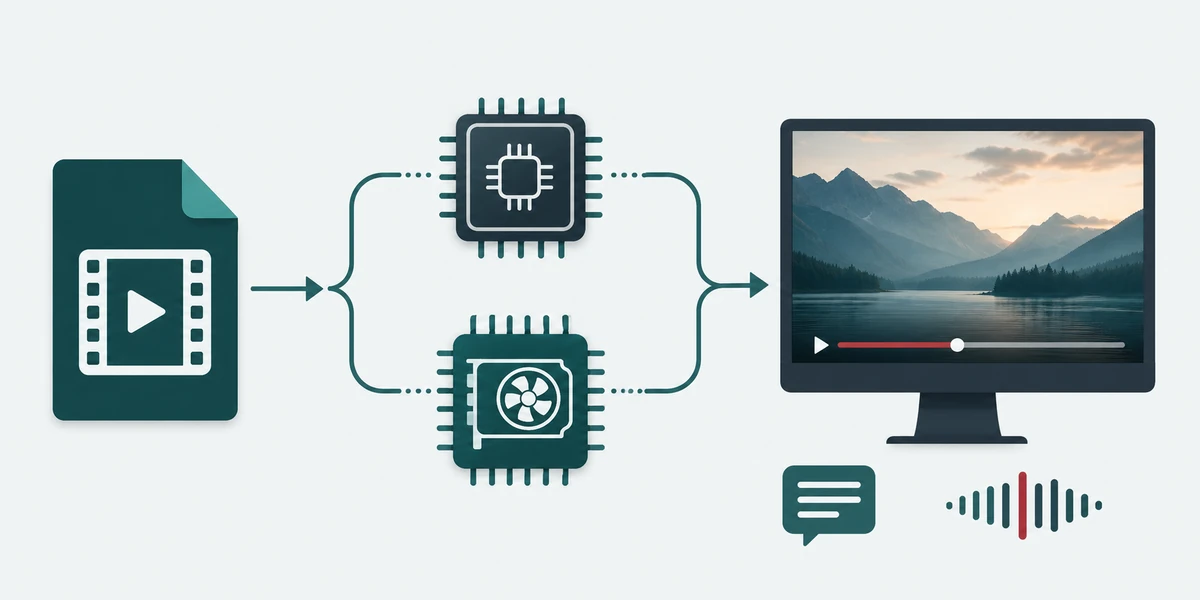
A comfortable viewing session depends on the picture, sound, and text staying in sync. Detailed players give you direct control over each element rather than fixed defaults.
For subtitles, PotPlayer can load several formats and let you shift their timing when they do not line up with the audio. You can also change the font size, color, and on-screen position to suit your reading preference. When a file carries multiple audio tracks, you can switch between them and manage external audio as needed.
On the audio side, built-in equalizer settings let you adjust the sound balance. This can help make dialogue easier to follow or keep volume levels steadier across quieter and louder scenes. Pixel shader and display settings add a further layer of visual adjustment for users who want to fine-tune the image.
Not everyone needs the same level of control, and a flexible player accounts for that range. A casual viewer may simply want files to open and play without extra steps. Someone working with media more closely may want to adjust decoding parameters, manage playlists, and organize larger archives.
PotPlayer supports both patterns of use. The interface handles straightforward playback for everyday viewing, while deeper menus give advanced users access to hardware settings, subtitle timing, and audio configuration. This means the same application can serve a quick clip and a detailed editing reference session.
Desktop media playback comes down to three practical questions: Will the file open, will it play smoothly, and can you adjust the details you care about? Broad codec support answers the first. Hardware acceleration addresses the second. Audio, subtitle, and display controls cover the third.
PotPlayer combines these three areas in one application, which makes it a reasonable option to consider for a desktop setup. To see how it fits your own computer, you can review the features directly.
A short, ordered path from the official page to your first file.
Use the button on this page to visit the PotPlayer URL supplied in the spreadsheet.
Confirm the available version and system information on the official page.
Download PotPlayer and follow the installation prompts for your Windows computer.
Test playback first, then review hardware, subtitle, and audio settings only if you need them.
Adjust hardware acceleration, subtitle timing, or audio tracks when a specific file calls for it.
The supplied copy focuses on compatibility, performance, and detailed control.
Common containers and modern codecs can open without a separate conversion workflow.
GPU-assisted decoding can help demanding video remain smooth while the computer stays responsive.
Timing, track, equalizer, display, and subtitle settings support a more tailored viewing experience.
Files in MP4, MKV, AVI, MOV, WMV, and FLV containers open from a single player.
Pixel-shader and display settings adjust image presentation for the source on screen.
Default settings cover everyday playback, while deeper menus expose hardware, subtitle, audio, playlist, and display options for finer control.
Impressions of desktop playback, shared by everyday viewers.
I stopped hunting for extra codec packs. The files I download tend to open on the first try now.
Turning on hardware acceleration made the difference on high-resolution clips. My machine stayed responsive.
Nudging the subtitle timing a fraction of a second was easy, and the font size finally matched my screen.
Defaults are enough most evenings. When I want to switch audio tracks, the option is right there.
A general summary of sentiment about everyday desktop playback.
Containers I used to convert first now open directly. Fewer detours before pressing play.
David MillerMoving decoding onto the GPU kept a 4K clip steady while other apps stayed open. Noticeable on my older tower.
Rachel GreenFont size, color, and position are all adjustable, so captions sit where I want them.
Yuki TanakaI never touch the deeper menus and it still plays everything I drop onto it. The extra options are there if a file needs them.
Matteo RicciChanging between audio tracks and loading an external one took a couple of clicks.
Sophia Al-FarsiCapabilities described in this guide, side by side.
| Capability | Free | Pro Recommended |
|---|---|---|
| Typical price (US, promotional) | $0 |
~$19 first year
then about $99/year · 7-day trial may be available
|
| Broad codec and container support | ✓ | ✓ |
| Straightforward default playback | ✓ | ✓ |
| Hardware-acceleration settings | ✗ | ✓ |
| Subtitle timing, font, and position | ✗ | ✓ |
| Audio track switching and external audio | ✗ | ✓ |
| Equalizer, pixel-shader, and display tuning | ✗ | ✓ |
| Start free | Get PotPlayer |
Players include different codec libraries. The required decoder may be built into one player but absent from another.
It moves part of the video-decoding workload from the CPU to the GPU.
The supplied article says subtitle timing, font, color, and position can be adjusted.
No. The supplied copy describes straightforward default playback alongside deeper configuration menus.
The article lists MP4, MKV, AVI, MOV, WMV, and FLV containers, with codecs such as HEVC, H.264, and VP9.
Yes. It can switch between audio tracks and manage external audio, according to the supplied copy.
It supports a wide range of modern formats and uses hardware acceleration to keep high-resolution video steady on a standard computer. Get PotPlayer and set it up on your PC to see how it handles your media collection.
This page is a paid advertorial brought to you by trivexoplatform.com. It is intended for promotional purposes only and should not be considered independent journalism, editorial content, or consumer advice. The content has been created or curated by the advertiser and may include affiliate links. We may receive compensation if you choose to purchase a featured product or service via the links provided. Please refer to our Advertising Disclaimer and Privacy Policy for more information.